
LUTs for Video Editing: Guide for Photographers
What are LUTs?
LUTs, or Look-Up Tables, are color grading tools used in video editing to transform the look of footage by remapping colors, tones, and contrast values. Instead of adjusting individual sliders, a LUT applies a predefined set of color values to your video, instantly changing its overall appearance.
Think of LUTs as presets designed specifically for video. They help create a consistent, stylized look across video clips, making them ideal for shaping mood, enhancing color, and speeding up the editing process. Whether you’re aiming for a cinematic feel, a clean natural look, or a film-inspired style, LUTs provide a fast starting point.
Image by Danielle Lindenlaub
Edited with Light & Legacy
How are LUTs different from presets?
Well… the first difference is LUTs are not used in Lightroom or Adobe Camera RAW. Unlike photo presets, LUTs are built for motion footage and are applied in video editing software, meaning they account for factors like dynamic range, color space, and frame-to-frame consistency. They’re commonly used to convert flat or Log footage (which is like the “raw” version of video footage) into more natural-looking footage, or to apply a creative color grade after basic corrections are made.
LUTs have cross-platform compatibility, meaning the same LUTs can be used in popular video editing and color grading software like Adobe Premiere Pro, DaVinci Resolve, and Final Cut Pro, making them especially useful for creators who work across different tools or collaborate with teams.
In short, LUTs allow video editors to quickly establish a consistent visual style, maintain color continuity across projects, and focus more on storytelling rather than technical color adjustments.
Concepts photographers need to know before getting into video editing
Glossary of Terms used in the videography space that photographers should know
Photographers know all the ins and outs of DSLRs, mirrorless cameras, megapixels, Lightroom modules, and more… but to catch up on some videography basics, here is a glossary of need-to-know terms!
Frame Rate (FPS) - How many frames are captured per second (e.g. 24fps, 30fps, 60fps).
Photography equivalent: burst mode or high speed/rapid capture
Cheat sheet: 24fps for cinematic look, 30fps for standard video, and 60fps for smooth motion or slow motionShutter Speed (Shutter Angle) - Controls motion blur in video.
Photography equivalent: shutter speed, but locked to frame rate.
Cheat sheet: 180° shutter ≈ 1/48 at 24fps; Too fast = choppy motion; Too slow = smeary motion blurResolution (4K, 1080p) - The pixel dimensions of your video.
Photography equivalent: image size/megapixels.
Tip: 4K allows reframing and cropping in post without quality loss.Log Footage - A flat, low-contrast video profile designed to capture more dynamic range.
Photography equivalent: RAW file format
Tip: Log footage requires color correction, conversion to Rec.709, and/or a LUT.Rec.709 - The standard color space for most video delivery.
Photography equivalent: sRGB
Tip: Most LUTs are designed to output to Rec.709.Color Space - Defines the range of colors a camera can capture or display. Examples: Rec.709, Rec.2020, DCI-P3
Photography equivalent: sRGB, Adobe RGB, ProPhoto RGB, etc
Tip: Using the wrong color space can cause a LUT to break.Codec - How video data is compressed (H.264, H.265, ProRes).
Photography equivalent: JPEG vs TIFF vs RAW
Cheat sheet: Higher-quality codecs = easier color grading.Bit Depth (8-bit, 10-bit) and Chroma Subsampling (4:2:0, 4:2:2) - Bit Depth is how much color information is stored, and Chroma Subsampling is how much color detail is retained.
Bit Depth Cheat Sheet: 8-bit: limited color flexibility; 10-bit: smoother gradients, better for LUTs
Chroma Subsampling Cheat Sheet: More data = better skin tones and color grading.Timeline - Where video clips, audio, and effects are arranged over time.
Photography equivalent: Lightroom Library, but time-based and typically only the “final” clips rather than the media pool, which is all clips.Playback Resolution and Proxy Files - Playback Resolution is a lower-quality preview for smoother editing (doesn’t affect export quality), and Proxy Files are lower-resolution copies of video used to improve performance.
Photography equivalent: smart previews.
Image by Peter Herman
Edited with Light & Ochre
Why Video Editors Use LUTs
Similar to how photographers use presets to streamline photo editing, videographers use LUTs to speed up their color grading workflow while maintaining a consistent look across all their footage. Instead of manually adjusting exposure, contrast, and color for every clip, a LUT provides a reliable starting point that instantly shapes the overall tone and mood of a video.
LUTs are especially valuable when working with multiple clips, cameras, or filming conditions. Applying the same LUT helps ensure color consistency across an entire project, preventing shots from feeling mismatched or visually disjointed. This is crucial for professional work like weddings, commercial videos, and branded content, where a cohesive visual style matters.
Many videographers also rely on LUTs to achieve a cinematic color grading look quickly. Whether the goal is soft highlights, richer shadows, or film-inspired colors, LUTs make it easy to apply complex color transformations in seconds. This allows creators to spend less time fine-tuning technical settings and more time focusing on storytelling, pacing, and emotion.
While LUTs aren’t always one-click solution, they function much like presets in photography: a strong foundation that can be adjusted and refined. Used correctly, LUTs help videographers work faster, stay consistent, and produce polished, cinematic results with less friction in the editing process.
Image by Ryan Chard Smith
Edited with Light & Ember
How Hybrid Photographers Can Use LUTs to Maintain a Consistent Visual Style
Using LUTs that match your photo edits
Photographers who are dipping their toes into the videography space often wonder how they can match their video work to their photography work to maintain their style. The easy answer is: you can find LUTs that pair with your presets if the preset company provides or sells them!
Using LUTs that match your photo presets is especially valuable for photographers moving into the hybrid photo/video space because it helps bridge the gap between stills and motion while protecting your visual identity.
Matching LUTs makes it easier to carry your established photo style into video. If you’ve spent years refining your style, using LUTs designed to mirror the presets you use allows your video work to feel like a natural extension of your photography. This creates a cohesive look across both mediums, which is crucial for brand recognition and portfolio consistency.
LUTs reduce video learning curve
Matched presets and LUTs significantly reduce the learning curve of video color grading. Video editing introduces new concepts like Log footage, color spaces, and technical color management that can feel overwhelming at first. Starting with LUTs that already align with your photo editing style lets you focus on learning video fundamentals without having to reinvent your aesthetic from scratch.
Consistent edits
Consistency is also a major advantage in real-world hybrid workflows. For photographers who photograph and film weddings, events, lifestyle, or branded content, clients often receive both photos and video from the same session. When LUTs and presets are aligned, the final deliverables feel intentional and polished, rather than like two separate products edited by different creators.
Simplify your video editing workflow with LUTs
From a workflow perspective, matching LUTs help you work faster and more confidently. You can apply a familiar look early in the edit, make small adjustments for exposure or white balance, and move on, much like you would when culling and editing photos. This speeds up turnaround time while maintaining quality.
Finally, using LUTs that match presets encourages a more subtle, photo-like approach to video color grading. Instead of over-processing footage or chasing trendy looks, you’re reinforcing a style that already works, feels natural, and resonates with your audience.
In short, matching LUTs and presets allows photographers entering video to stay consistent, work efficiently, and grow into motion without losing the style that defines their work.
Image by Klau Dee Photo
Edited with Light & Truth
Types of LUTs for Video Editing
Technical LUTs (Log to Rec.709, Camera Conversion)
Technical LUTs are designed to handle color science, not style. Their main purpose is to convert flat or Log footage into a standard color space like Rec.709, restoring natural contrast, saturation, and accurate colors.
These LUTs are often camera-specific, meaning a Sony Log LUT won’t behave the same way on Canon or Panasonic footage. For photographers, think of technical LUTs like a camera profile applied to a RAW photo: they create a clean, neutral base before any creative adjustments are made.
Technical LUTs should usually be applied early in the workflow, before creative grading, to ensure colors behave predictably and consistently.
Creative LUTs for Stylized Looks
Creative LUTs are used to define the mood, tone, and overall aesthetic of a video. They may adjust contrast curves, color balance, highlight roll-off, and saturation to create anything from clean and modern looks to bold, dramatic styles.
For photographers, creative LUTs are most comparable to Lightroom presets. They’re rarely meant to be a final, one-click solution, but instead serve as a strong starting point that can be fine-tuned for each clip.
These LUTs are best applied after basic color correction, and their intensity can be reduced to keep the footage natural and cinematic.
Film Emulation LUTs
Film emulation LUTs are designed to replicate the look of analog film stocks by mimicking characteristics like color response, contrast, highlight roll-off, and shadow depth. Popular styles are often inspired by Kodak and Fujifilm stocks.
Photographers familiar with film presets or film simulations will feel right at home here. Film emulation LUTs are especially popular with hybrid shooters because they create a timeless, organic look that works well for both photo and video projects.
These LUTs tend to look best when applied subtly and paired with good lighting and exposure, rather than used to “fix” poorly shot footage.
Black and White LUTs
Black and white LUTs remove color information while shaping contrast, highlights, and shadows to create depth and texture in monochrome footage. A well-designed black and white LUT does more than desaturate—it controls tonal separation to keep skin, skies, and textures visually interesting.
For photographers, this is similar to using black and white profiles or presets that control how different colors translate into grayscale. These LUTs are often used for artistic projects, documentaries, or emotional storytelling where color might distract from the subject.
Black and white LUTs can be applied either creatively or technically, depending on whether the goal is a neutral conversion or a more dramatic, stylized result.
Image by Lis Warren
Edited with Light & Ember
How to Use LUTs in Video Editing Software
How to Apply LUTs in Adobe Premiere Pro
Import your video clips and add them to the timeline
Select a clip, then open the Lumetri Color panel
In Basic Correction, apply a technical LUT if you shot in Log
Adjust exposure, contrast, and white balance as needed
Switch to the Creative tab and apply a creative LUT
Reduce the Intensity slider to fine-tune the look
(Optional) Apply the LUT to an Adjustment Layer to affect multiple clips at once
How to Use LUTs in DaVinci Resolve
Import footage and add clips to the timeline
Open the Color workspace
Create a new node for technical correction
Apply a Log-to-Rec.709 or camera conversion LUT in the first node
Create a second node for creative grading
Apply a creative LUT in the new node
Adjust node strength or use color wheels to refine the look
Repeat or copy nodes across clips for consistency
Using LUTs in Final Cut Pro
Import your footage and place clips on the timeline
Select a clip or adjustment layer
Open the Effects Browser and add Custom LUT
Choose your LUT file from the inspector
Apply technical LUTs first if working with Log footage
Adjust exposure and white balance
Lower the LUT Mix or Opacity for a natural look
Apply the same LUT across clips for consistency
Want step-by-step video guides on how to install LUTs in Adobe Premiere Pro, DaVinci Resolve, and Final Cut Pro? Click below and scroll to the blue LUTs Installation videos!
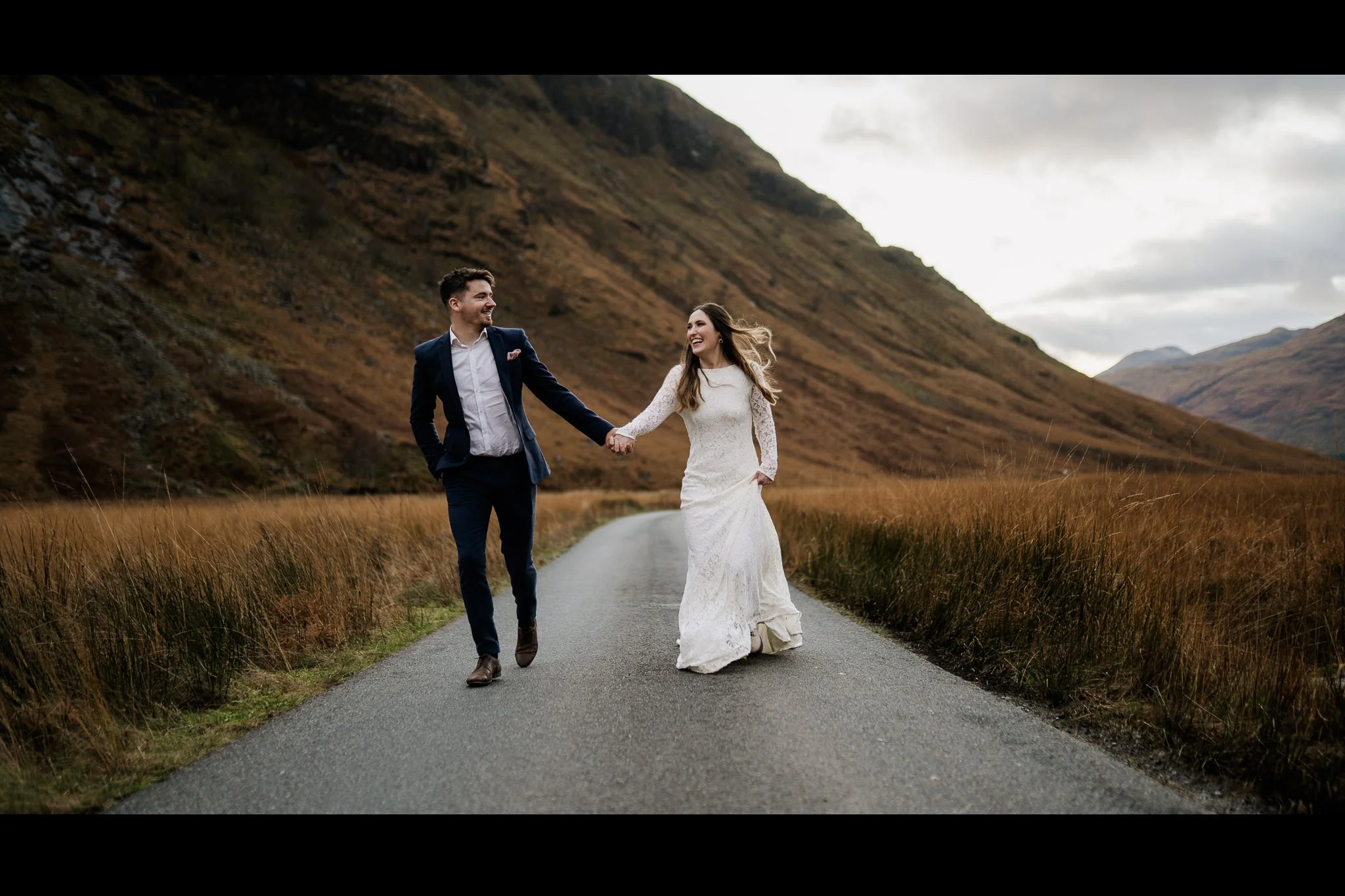
Image by The Wild Love Club
Edited with Light & Truth
Video Editing Tips for Photographers New to LUTs
When to Apply LUTs in a Video Workflow
LUTs work best when they’re used after basic corrections, not as a first step.
Best practice workflow:
Fix exposure and white balance first
Balance contrast so footage looks natural
Apply your LUT after the clip is corrected
Think of it like photo editing: Correct your RAW file first, Apply a preset second, Fine-tune last
Why LUTs Aren’t a One-Click Fix
LUTs speed things up, but they might need tweaks. Every clip has different lighting and exposure, a LUT won’t look perfect on every clip. Small adjustments are always expected.
LUTs = starting point, not final result
Adjusting LUT Strength for Subtle Results
Most LUTs look better when used less aggressively.
Tips for natural-looking video:
Lower LUT intensity or opacity
Watch skin tones and highlights closely
Subtle color almost always looks more cinematic
Tools to Refine a LUT
Opacity / Mix: reduce LUT strength
Curves: fine-tune contrast
Color wheels: balance shadows, midtones, highlights
Avoiding Over-Grading
Signs you’ve pushed a LUT too far:
Oversaturated colors
Crushed shadows
Unnatural skin tones
Quick check: Toggle the LUT on and off. If the difference feels extreme, dial it back.
Quick Reminder for Photographers
Video is time-based, not single-frame perfection. It’s about consistency.
Lighting and white balance should be corrected before applying LUTs and color grading.
Subtle edits look better in motion. If it feels “too much,” it probably is.
Photo Presets & Matching LUTs for Video
Archipelago Presets has created FOUR LUT collections to match the Core Presets in our library: Light & Truth for true-to-color, Light & Ember for cinematic, Light & Ochre for warm and earthy, and Light & Legacy for airy film emulation. Try them out and match your photo and video edits!
Image by Alejandro Diaz
Edited with Light & Ochre
Use LUTs to Confidently Edit Video as a Photographer
For photographers transitioning into video editing, LUTs offer a familiar and efficient way to approach color grading without sacrificing quality or creative control. Much like photo presets, LUTs help speed up workflows, maintain consistent color and tone, and establish a cohesive visual style across both photos and video.
When used properly by color correcting first, applying LUTs intentionally, and adjusting their strength, LUTs make it easier to achieve clean, cinematic results without overcomplicating the editing process. They are especially valuable for hybrid shooters who need their video work to visually match their photography.
Rather than acting as a one-click solution, LUTs serve as a reliable starting point that grows with you. As your confidence in video editing improves, LUTs remain a powerful tool for consistency, efficiency, and professional-looking color grading.
In short, LUTs help photographers step into video with confidence while bridging the gap between stills and motion and preserving the style that defines their work.
FREQUENTLY ASKED QUESTIONS: LUTs for Video Editing
-
LUT stands for Look-Up Table. It’s a color grading tool that remaps colors, tones, and contrast to quickly change the overall look of video footage.
-
Not exactly. LUTs are like video presets, but they’re built for motion footage and used in software like Premiere Pro, DaVinci Resolve, and Final Cut Pro—not Lightroom or Adobe Camera RAW.
-
Log footage is a flat, low-contrast profile designed to capture more dynamic range (similar to shooting RAW photos). Log usually needs correction first, often using a technical LUT (Log to Rec.709) to bring it back to a natural baseline.
-
Technical LUTs convert footage (like Log) into a standard color space (often Rec.709) for accurate, natural color and contrast.
Creative LUTs add a stylized look (cinematic, warm, film-inspired, etc.) and are best used after basic corrections.
-
Rec.709 is the most common standard color space for video delivery (similar to sRGB in photography). Many LUTs are designed to output to Rec.709.
-
Best practice: correct first, LUT second. Start by fixing exposure and white balance, then apply your LUT, then fine-tune. This mirrors photo editing: correct your RAW first, apply a preset second.
-
Because every clip is different—lighting, exposure, white balance, and color space all affect how a LUT behaves. LUTs are a starting point, and small tweaks are normal (often required).
-
Reduce LUT strength (Intensity/Opacity/Mix). Watch skin tones and highlights closely. Subtle color usually looks more cinematic in motion.
-
Often yes. LUTs are generally cross-platform, as long as you apply them correctly and your footage is in the expected color space / gamma.
-
Film emulation LUTs mimic characteristics of analog film (color response, contrast, highlight roll-off, shadow depth). They tend to look best when applied subtly and paired with good exposure and lighting.
WHAT TO READ NEXT? → Film Inspired Photo Editing